Application Load Balancers support Weighted Target Groups routing. With this feature, you will be able to do weighted routing of the traffic forwarded by a rule to multiple target groups. This enables various use cases like blue-green, canary and hybrid deployments without the need for multiple load balancers.
It even enables zero-downtime migration between on-premises and cloud or between different compute types like EC2 and Lambda.
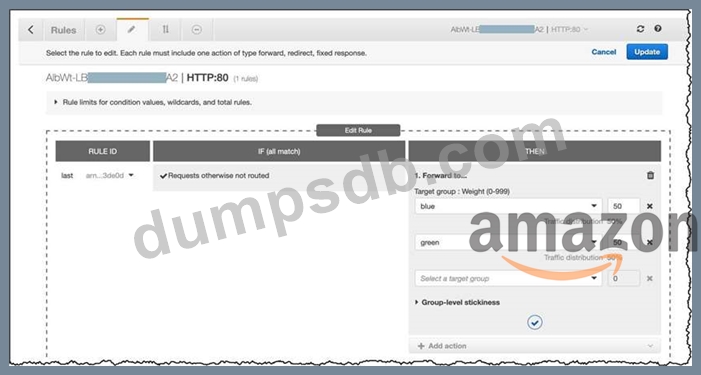
To divert 50% of the traffic to the new application in AWS and the other 50% to the application, you can also use Route 53 with Weighted routing policy. This will divert the traffic between the on-premises and AWS-hosted application accordingly.
Weighted routing lets you associate multiple resources with a single domain name (tutorialsdojo.com) or subdomain name (portal.tutorialsdojo.com) and choose how much traffic is routed to each resource. This can be useful for a variety of purposes, including load balancing and testing new versions of software.
You can set a specific percentage of how much traffic will be allocated to the resource by specifying the weights.
For example, if you want to send a tiny portion of your traffic to one resource and the rest to another resource, you might specify weights of 1 and 255. The resource with a weight of 1 gets 1/256th of the traffic (1/1+255), and the other resource gets 255/256ths (255/1+255).
You can gradually change the balance by changing the weights. If you want to stop sending traffic to a resource, you can change the weight for that record to 0.
When you create a target group in your Application Load Balancer, you specify its target type. This determines the type of target you specify when registering with this target group. You can select the following target types:
1. instance - The targets are specified by instance ID.
2. ip - The targets are IP addresses.
3. Lambda - The target is a Lambda function.
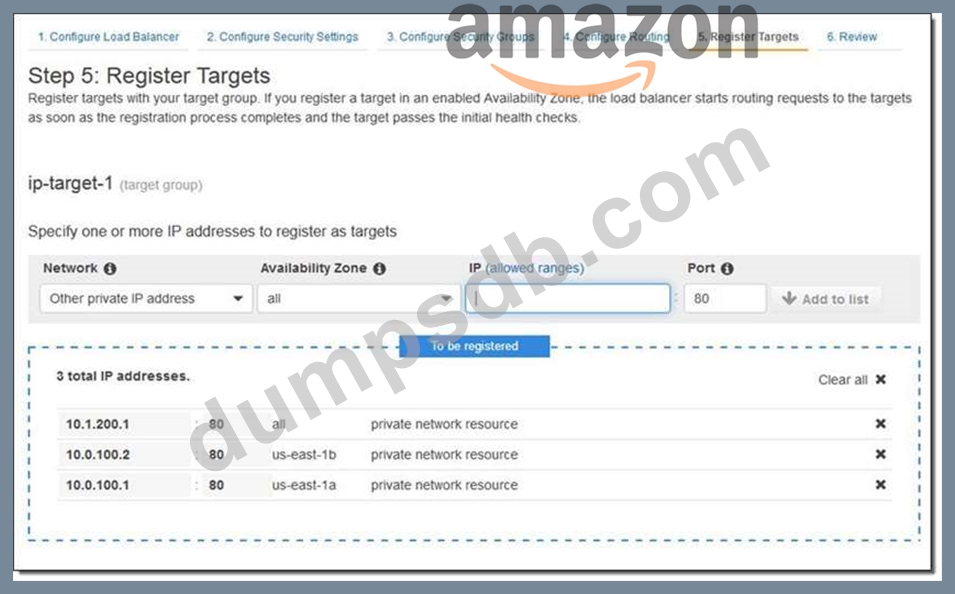
When the target type is ip, you can specify IP addresses from one of the following CIDR blocks:
- 10.0.0.0/8 (RFC 1918)
- 100.64.0.0/10 (RFC 6598)
- 172.16.0.0/12 (RFC 1918)
- 192.168.0.0/16 (RFC 1918)
- The subnets of the VPC for the target group
These supported CIDR blocks enable you to register the following with a target group: ClassicLink instances, instances in a VPC that is peered to the load balancer VPC, AWS resources that are addressable by IP address and port (for example, databases), and on-premises resources linked to AWS through AWS Direct Connect or a VPN connection.
Take note that you can not specify publicly routable IP addresses. If you specify targets using an instance ID, traffic is routed to instances using the primary private IP address specified in the primary network interface for the instance. If you specify targets using IP addresses, you can route traffic to an instance using any private IP address from one or more network interfaces. This enables multiple applications on an instance to use the same port. Each network interface can have its own security group.
Hence, the correct answers are the following options:
- Use an Application Elastic Load balancer with Weighted Target Groups to divert and proportion the traffic between the on-premises and AWS-hosted application. Divert 50% of the traffic to the new application in AWS and the other 50% to the application hosted in their on-premises infrastructure.
- Use Route 53 with Weighted routing policy to divert the traffic between the on-premises and AWS- hosted application. Divert 50% of the traffic to the new application in AWS and the other 50% to the application hosted in their on-premises infrastructure.
The option that says: Use a Network Load balancer with Weighted Target Groups to divert the traffic between the on-premises and AWS-hosted application. Divert 50% of the traffic to the new application in AWS and the other 50% to the application hosted in their on-premises infrastructure is incorrect because a Network Load balancer doesn't have Weighted Target Groups to divert the traffic between the on- premises and AWS-hosted application.
The option that says: Use Route 53 with Failover routing policy to divert and proportion the traffic between the on-premises and AWS-hosted application. Divert 50% of the traffic to the new application in AWS and the other 50% to the application hosted in their on-premises infrastructure is incorrect because you cannot divert and proportion the traffic between the on-premises and AWS-hosted application using Route 53 with Failover routing policy. This is primarily used if you want to configure active-passive failover to your application architecture.
The option that says: Use AWS Global Accelerator to divert and proportion the HTTP and HTTPS traffic between the on-premises and AWS-hosted application. Ensure that the on-premises network has an AnyCast static IP address and is connected to your VPC via a Direct Connect Gateway is incorrect because although you can control the proportion of traffic directed to each endpoint using AWS Global Accelerator by assigning weights across the endpoints, it is still wrong to use a Direct Connect Gateway and an AnyCast IP address since these are not required at all. You can only associate static IP addresses provided by AWS Global Accelerator to regional AWS resources or endpoints, such as Network Load Balancers, Application Load Balancers, EC2 Instances, and Elastic IP addresses. Take note that a Direct Connect Gateway, per se, doesn't establish a connection from your on-premises network to your Amazon VPCs. It simply enables you to use your AWS Direct Connect connection to connect to two or more VPCs that are located in different AWS Regions. References:
http://docs.aws.amazon.com/Route53/latest/DeveloperGuide/routing-policy.html
https://aws.amazon.com/blogs/aws/new-application-load-balancer-simplifies-deployment-with-weighted-t arget-groups/
https://docs.aws.amazon.com/elasticloadbalancing/latest/application/load-balancer-target-groups.html Check out this Amazon Route 53 Cheat Sheet:
https://tutorialsdojo.com/amazon-route-53/