A network engineer discovers network traffic that is sending confidential information to an unauthorized and unknown destination. Which of the following best describes the cause of this network traffic?
Correct Answer: D
Malware refers to any malicious software that can exfiltrate confidential data, including spyware, trojans, and rootkits. This fits the scenario where unauthorized data transfer is occurring. Breakdown of Options: A). Adware - Displays ads, does not typically steal data. B). Ransomware - Encrypts files but does not exfiltrate data. C). Darkware - Not a real cybersecurity term. D). Malware - Correct answer. Malicious software is responsible for unauthorized data exfiltration. Reference: CompTIA Network+ (N10-009) Official Study Guide - Domain 3.5: Given a scenario, implement cybersecurity measures. NIST 800-83: Malware Incident Prevention & Handling
Question 122
Which of the following best explains the role of confidentiality with regard to data at rest?
Correct Answer: C
Confidentiality with Data at Rest: Confidentiality is a core principle of data security, ensuring that data stored (at rest) is only accessible to authorized individuals. This protection is achieved through mechanisms such as encryption, access controls, and permissions. Privileged Access: The statement "Data can be accessed after privileged access is granted" aligns with the confidentiality principle, as it restricts data access to users who have been granted specific permissions or roles. Only those with the appropriate credentials or permissions can access the data. Incorrect Options: A . "Data can be accessed by anyone on the administrative network." This violates the principle of confidentiality by allowing unrestricted access. B . "Data can be accessed remotely with proper training." This focuses on remote access rather than restricting access based on privileges. D . "Data can be accessed after verifying the hash." This option relates more to data integrity rather than confidentiality.
Question 123
Which of the following is the next step to take after successfully testing a root cause theory?
Correct Answer: D
Troubleshooting Methodology: Confirming the Root Cause: After testing and confirming the theory, the next logical step is to address the issue by implementing a solution. Implementation of the Solution: Resolve the Issue: Implement the identified solution to rectify the problem. This step involves making necessary changes to the network configuration, replacing faulty hardware, or applying software patches. Documentation: Document the solution and the steps taken to resolve the issue to provide a reference for future troubleshooting.
Question 124
Which of the following services runs on port 636?
Correct Answer: D
LDAP over SSL (LDAPS) uses port 636 to provide secure, encrypted authentication for directory services. Breakdown of Options: A). SMTP (Simple Mail Transfer Protocol) - Uses port 25, not 636. B). Syslog - Uses port 514 (UDP), not 636. C). TFTP (Trivial File Transfer Protocol) - Uses port 69 (UDP), not 636. D). LDAPS (Lightweight Directory Access Protocol Secure) - # Correct answer. Uses port 636 for secure directory authentication. Reference: CompTIA Network+ (N10-009) Official Study Guide - Domain 3.1: Compare and contrast network protocols. RFC 4511: Lightweight Directory Access Protocol (LDAP)
Question 125
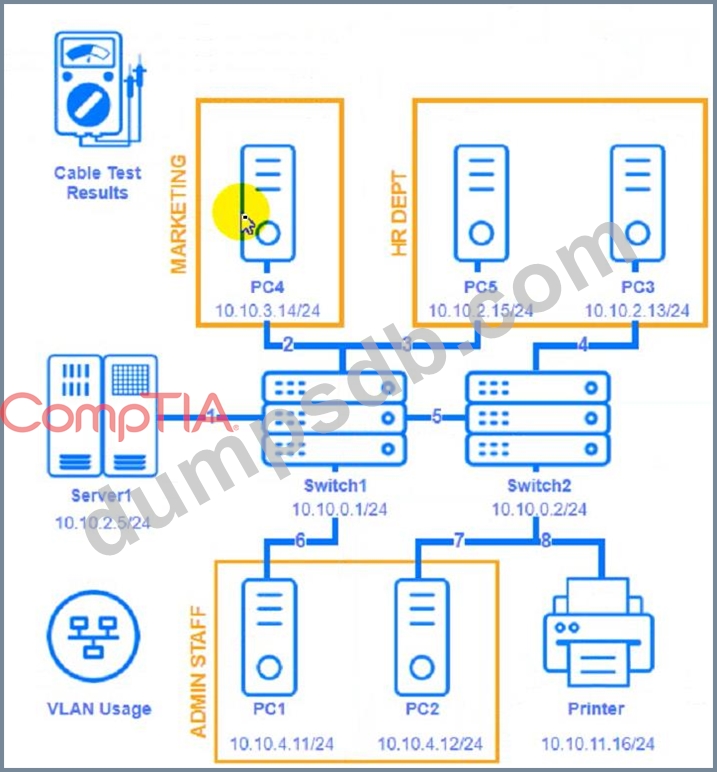
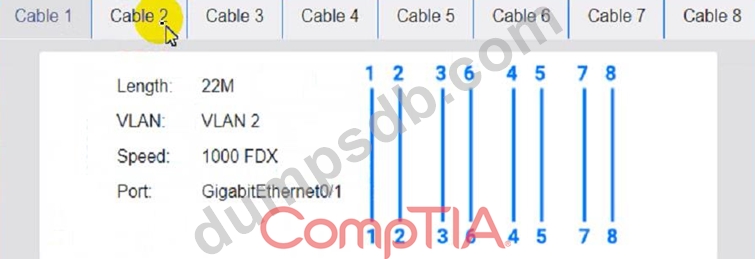
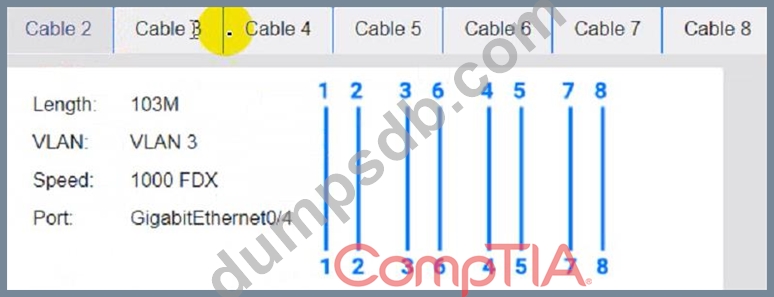
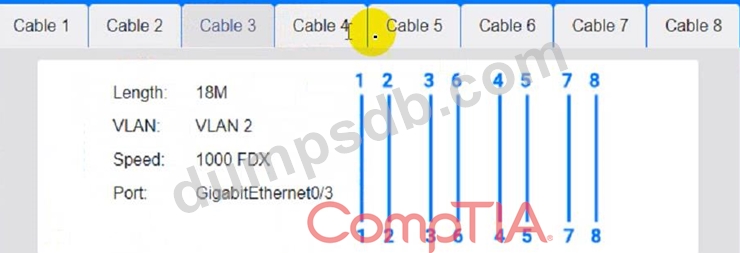
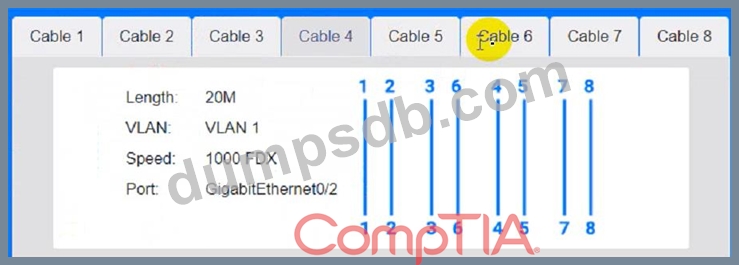
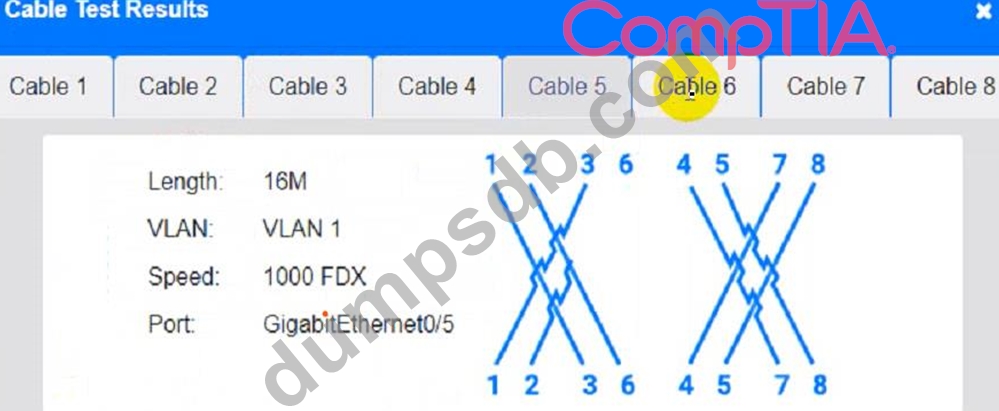
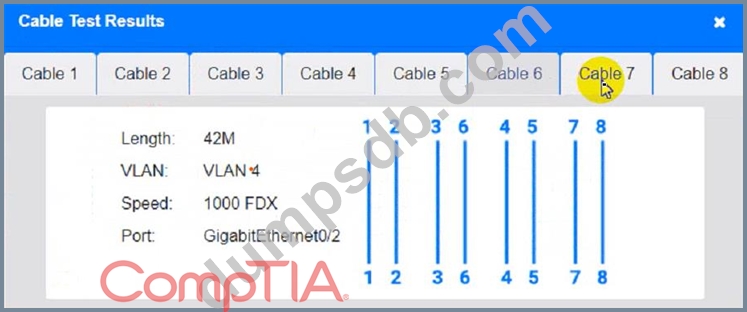
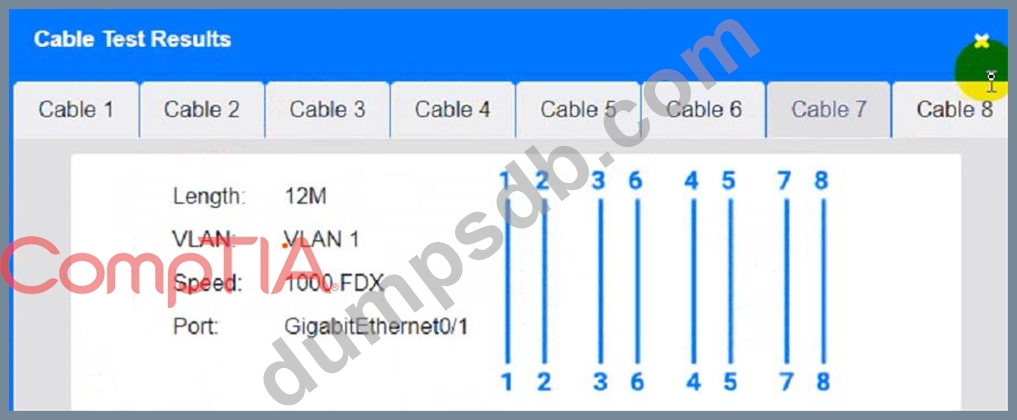
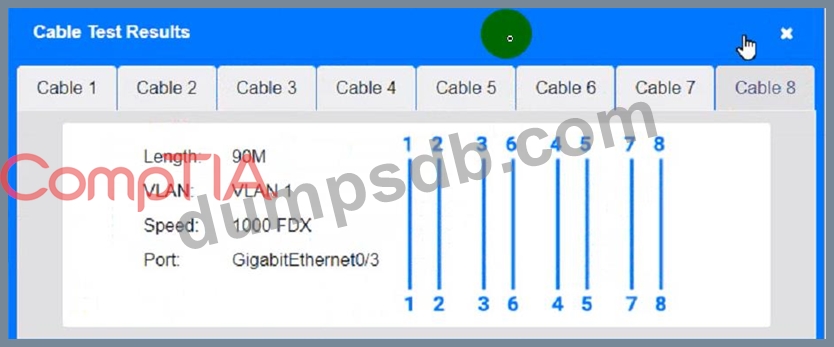
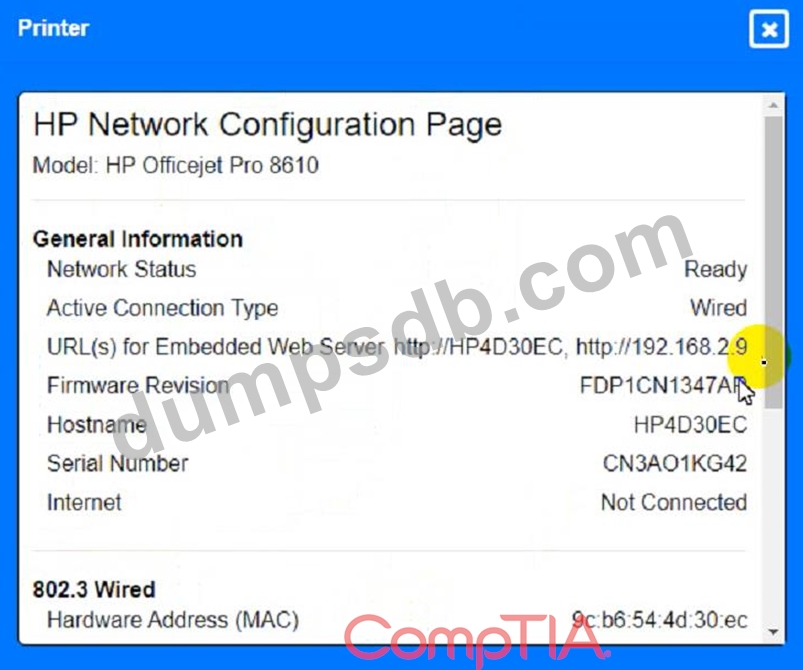
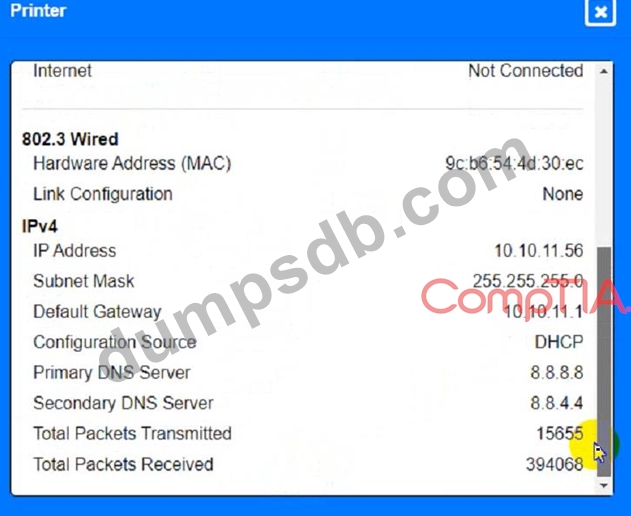
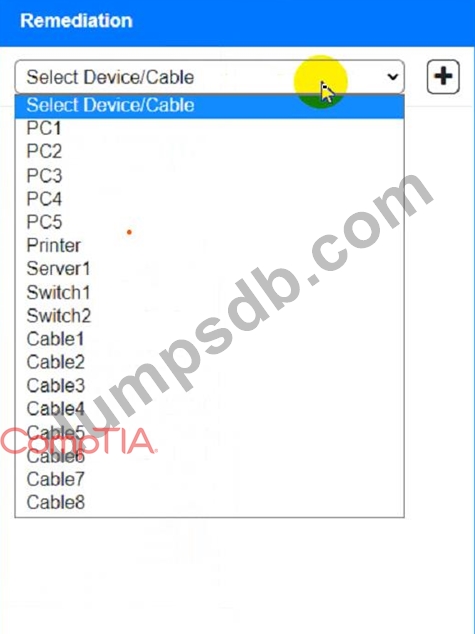
SIMULATION A network technician needs to resolve some issues with a customer's SOHO network. The customer reports that some of the devices are not connecting to the network, while others appear to work as intended. INSTRUCTIONS Troubleshoot all the network components and review the cable test results by Clicking on each device and cable. Diagnose the appropriate component(s) by identifying any components with a problem and recommend a solution to correct each problem. Cable Test Results: Cable 1: Cable 2: Cable 3: Cable 4:
Correct Answer:
See the Explanation for detailed information on this simulation Explanation: (Note: Ips will be change on each simulation task, so we have given example answer for the understanding) To troubleshoot all the network components and review the cable test results, you can use the following steps: Click on each device and cable to open its information window. Review the information and identify any problems or errors that may affect the network connectivity or performance. Diagnose the appropriate component(s) by identifying any components with a problem and recommend a solution to correct each problem. Fill in the remediation form using the drop-down menus provided. Here is an example of how to fill in the remediation form for PC1: The component with a problem is PC1. The problem is Incorrect IP address. The solution is Change the IP address to 192.168.1.10. You can use the same steps to fill in the remediation form for other components. To enter commands in each device, you can use the following steps: Click on the device to open its terminal window. Enter the command ipconfig /all to display the IP configuration of the device, including its IP address, subnet mask, default gateway, and DNS servers. Enter the command ping <IP address> to test the connectivity and reachability to another device on the network by sending and receiving echo packets. Replace <IP address> with the IP address of the destination device, such as 192.168.1.1 for Core Switch 1. Enter the command tracert <IP address> to trace the route and measure the latency of packets from the device to another device on the network by sending and receiving packets with increasing TTL values. Replace <IP address> with the IP address of the destination device, such as 192.168.1.1 for Core Switch 1. Here is an example of how to enter commands in PC1: Click on PC1 to open its terminal window. Enter the command ipconfig /all to display the IP configuration of PC1. You should see that PC1 has an incorrect IP address of 192.168.2.10, which belongs to VLAN 2 instead of VLAN 1. Enter the command ping 192.168.1.1 to test the connectivity to Core Switch 1. You should see that PC1 is unable to ping Core Switch 1 because they are on different subnets. Enter the command tracert 192.168.1.1 to trace the route to Core Switch 1. You should see that PC1 is unable to reach Core Switch 1 because there is no route between them. You can use the same steps to enter commands in other devices, such as PC3, PC4, PC5, and Server 1.