What is the maximum number of bricks that can be configured on a PowerMac 8000 system bay?
Correct Answer: C
Question 52
A Storage Group is serving host read/write I/O. The Storage Administrator started an MDM migration and ran a symdm sync -stop command, putting the migration in a CutoverNoSync migration state Where does the customer data in the Storage Group reside?
Correct Answer: C
Step by Step Comprehensive Detailed Explanation: In an MDM (Migration for Dell EMC) migration, data is moved from a source array to a target array. When the symdm sync -stop command is issued, it puts the migration into the CutoverNoSync state. This state signifies that: * Synchronization Stopped:Active data synchronization between the source and target arrays has been stopped. * Data on Both Arrays:However, the customer data still resides onboththe source and target arrays. This is because the CutoverNoSync state is a transitional state that allows for a controlled cutover to the target array. The next step would typically involve a cutover operation, where host access is switched to the target array, and the source array is removed from the migration configuration. Why other options are incorrect: * A. Only the target array:While the goal is to eventually have the data only on the target, in the CutoverNoSync state, data still exists on both arrays. * B. Only on the source array:Data has already been partially or fully copied to the target array during the migration process. References and documents of Dell's public documentation for PowerMax Operate v.2: * Dell Solutions Enabler 10.0.0 CLI User Guide:This guide provides detailed information about the symdm command and its various options, including the sync -stop command and the CutoverNoSync state. You can find this document on the Dell Support website by searching for "Solutions Enabler CLI User Guide." * Dell PowerMax Family: Essentials and Best Practices Guide:This guide may offer general information about data migration and the different states involved in the process.
Question 53
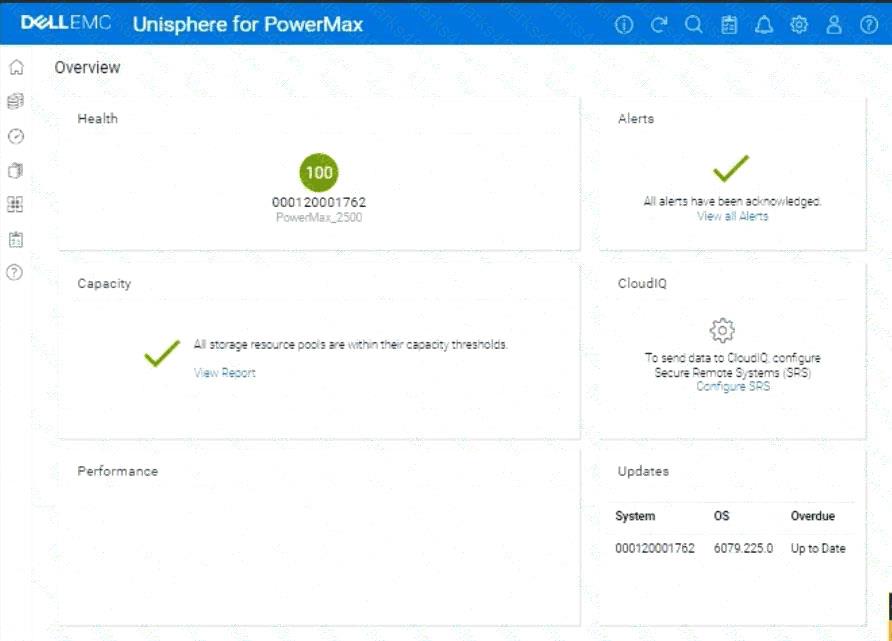
A company is preparing for a major product launch and a quarterly compliance audit. Perform a system health check to ensure that the storage array with SID - 1762 is functioning optimally, and also review the compliance status, generate and download the compliance report for all SGs. Use the simulator to complete these tasks.
Correct Answer:
See the explanation for step by step solution. Explanation: Okay, I understand. We need to perform a system health check and review the compliance status for a PowerMax array with SID ending in 1762 using the Unisphere simulator, then generate and download a compliance report. Here's how you would do it in the Unisphere for PowerMax simulator, based on the provided image and common Unisphere functionality: Steps: 1. Launch the Simulator and Access the System Health View * Open Unisphere for PowerMax in your web browser. * You should already be logged in to the simulator, with the PowerMax array with SID 1762. * The initialOverviewpage (as shown in the image) provides a good starting point for a health check. 2. Analyze the Overview Page * Health:The "Health" section displays the overall health status of the array. In the image, it shows "100" with a green checkmark, which indicates that the array is currently healthy. * Alerts:The "Alerts" section will show if there are any active alerts. In the image, it shows a green checkmark and "All alerts have been acknowledged," meaning no unacknowledged alerts. You can click "View all Alerts" to see the alert history. * Capacity:The "Capacity" section indicates whether storage resource pools are within their capacity thresholds. The green checkmark and "All storage resource pools are within their capacity thresholds" message indicate that capacity is currently healthy. You can click "View Report" for more details. * Performance:The "Performance" section is not detailed in the image, but it would typically provide a quick overview of the array's performance. * Updates:The "Updates" section shows the system's PowerMaxOS code level and whether any updates are overdue. In the image, it shows that the system is "Up to Date." 3. Navigate to the Compliance Section * In the left-hand navigation pane, click onData Protectionto expand it. * Click onComplianceunder Data Protection. 4. Review Compliance Status * The Compliance view will show you the overall compliance status of your storage groups against the defined compliance policies. * Review the compliance status for each Storage Group. * Look for any storage groups that are marked as "Non-Compliant." 5. Generate the Compliance Report * Click on"Generate Report"(or a similarly worded button) within the Compliance view. This might also be represented as an icon in the simulator. * Select all Storage GroupsSince we need to generate the report for all storage groups. * Report Format:Choose the desired report format. Common options are usually PDF, CSV, or HTML. For this simulation, let's assume PDF is available and select it. * Download the Report:Once the report is generated, there will typically be a"Download"or similar option to save the report to your local system. Click it to download the compliance report. 6. Further Health Checks (Optional): * Detailed Performance Metrics:You can navigate to thePerformancesection in the left navigation pane (under "Dashboard") to view more detailed performance metrics for various components of the array. * Hardware Status:You can typically find a "Hardware" section (or similarly named section) that provides information about the physical components of the array (e.g., DAEs, directors, ports).
Question 54
What function can a storage administrator enable on the Port Attributes page?
Correct Answer: B
Step by Step Comprehensive Detailed Explanation: The Port Attributes page in Unisphere for PowerMax allows storage administrators to configure various settings related to the front-end ports on the storage array. One of the functions available on this page isSelect Mgt Option. This option allows you to specify how the port is used for management purposes: * Dedicated Management Port:You can designate a port as a dedicated management port, which is used exclusively for communication with management tools like Unisphere and Solutions Enabler. * Shared Management Port:You can configure a port to be shared for both management traffic and host I/O traffic. This flexibility allows you to optimize port usage and segregate management traffic if needed. Why other options are incorrect: * A. Manage Protocol:Protocol settings (like FC or iSCSI) are typically configured elsewhere in Unisphere, not on the Port Attributes page. * C. Volume Set Addressing:Volume Set Addressing is a feature related to mainframe connectivity and is not directly managed through the Port Attributes page. * D. ORS Ceiling:ORS (Open Replicator Solutions) settings are managed separately and not through the Port Attributes page. References and documents of Dell's public documentation for PowerMax Operate v.2: * Dell Unisphere for PowerMax 10.0.0 Online Help:The online help for Unisphere provides detailed information about the Port Attributes page and the available configuration options, including the "Select Mgt Option" function. You can access this help within Unisphere itself or on the Dell Support website. * Dell PowerMax Family: Essentials and Best Practices Guide:This guide may offer general information about port management and configuration in PowerMax.
Question 55
When using TimeFinder SnapVX, what is the maximum number of linked targets allowed per source?