Which port flag is required for auto-provisioning?
Correct Answer: B
Question 7
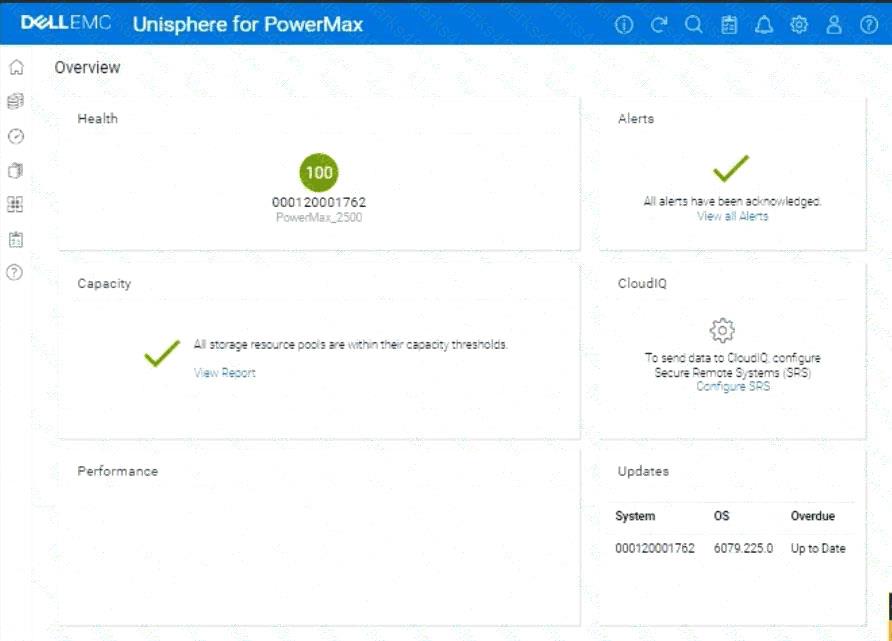
A company is setting up a multi-tenant environment where multiple departments share the same storage array with SID 1762. The IT department requires 2 TB of storage to be available on the ESXi1 host. Use "ESXi1_SG" for the storage group name, create a port group with Dir- Ports "OR-1C:0 and OR-2C:0," and leave all other settings at their default. Using the simulator, provision the storage required with a single volume using auto-provisioning groups.
Correct Answer:
See the explanation for step by step solution. Explanation: We need to provision 2 TB of storage to the ESXi1 host on a PowerMax array (SID 1762) using Unisphere, in a multi-tenant environment. We'll use auto-provisioning with the following specifics: * Storage Group Name:ESXi1_SG * Port Group:(A new port group with Directors OR-1C:0 and OR-2C:0) * Volume Size:2 TB (single volume) * Other Settings:Default Here are the step-by-step instructions, tailored for the Unisphere simulator as described in the question: Steps: 1. Launch the Simulator and Navigate to Storage Groups * Open Unisphere for PowerMax in your web browser. * You should already be logged in to the simulator, with the PowerMax array with SID 1762. * In the left-hand navigation pane, click onStorage>Storage Groups. 2. Initiate Storage Group Creation * Click theCreatebutton (likely a plus "+" icon) in the Storage Groups section to start the Create Storage Group wizard. 3. Name the Storage Group * In the "Create Storage Group" wizard: * Storage Group Name:Enter ESXi1_SG. * Enable FAST/Service Level:Do not check this option, as we are leaving all other settings at their default. * ClickNextorContinue(the exact wording might vary). 4. Add Volumes * Ensure"Create new volumes"is selected. * Number of Volumes:Enter 1. * Volume Size: * Enter 2. * Select TB from the dropdown for the unit. * ClickNext. 5. Create the Port Group * You should now be on the "Connectivity" or "Host" step, where you will add a new port group. * Select "Create Port Group" * Port Group Name:Give the new port group a name. You can use something descriptive like "ESXi1_PG," or any name that follows your organization's naming conventions. * Select Ports: * Find and select the following Directors and ports from the list of available ports: * OR-1C:0 * OR-2C:0 * Note:The simulator may not allow you to highlight the exact director ports as in a production environment. It will likely display all directors and ports under the selected array. Just ensure they are selected as part of the port group. * ClickNext. 6. Add host to the Masking View * Select "Add Host" * Select "Create New Host" * Host Name:ESXi1 * Initiators:You don't have specific initiators to add in this simulation, so you can skip this part or add any from the available options. This is because we are working within a simulated environment. * ClickNext 7. Review and Create * You'll be presented with a summary page that shows: * Storage Group: ESXi1_SG * Volume: 1 x 2 TB volume * Port Group: (The new port group you created with OR-1C:0 and OR-2C:0) * Host: ESXi1 * Carefully review all the settings to make sure they are correct. * ClickRun NoworFinish(or similar wording) to create the storage group, volume, port group, and masking view. 8. Verification (Optional) * After the operation completes, you can verify the results: * Go back to theStorage Groupslist. You should see the ESXi1_SG storage group. * Click on ESXi1_SG to view its details. You should see the 2 TB volume and the associated host (ESXi1) and port group. * You can also navigate toHosts>Port Groupsto verify that the new port group was created correctly. * Finally, you can navigate toHosts>Masking Viewsto verify that a masking view was created correctly.
Question 8
Which units of measure are used to specify the size type when creating volumes in Unisphere?
Correct Answer: D
Question 9
A customer has a clone session for the storage group DATA that is no longer needed. Using the simulator, terminate the clone session for the storage group.
Correct Answer:
See the explanation for step by step solution. Explanation: We need to terminate a clone session for the storage group named "DATA" in the Unisphere for PowerMax simulator. Here's a step-by-step guide on how to do this, based on typical Unisphere functionality and the context of the question: Steps: 1. Launch the Simulator and Navigate to the TimeFinder/Clone Section * Open Unisphere for PowerMax in your web browser. * Log in to the simulator (you should already be logged in with the array SID 1762 selected, based on the provided image). * In the left-hand navigation pane, locate the section related to TimeFinder operations. This is usually found under: * Data Protection * Local Protection * TimeFinder * Expand the relevant sections and click onTimeFinder SnapVXorTimeFinder Clone(the exact wording might vary slightly in the simulator). The goal is to get to the view where you can manage clone sessions. 2. Locate the Clone Session for the "DATA" Storage Group * The TimeFinder/Clone view will display a list of existing clone sessions. * You need to find the session associated with the "DATA" storage group. Look for the following: * Storage Group Name:The "DATA" storage group should be listed as the source of the clone session. * Session Type/Mode:Verify that it's a Clone session (not a SnapVX snapshot or another type of session). 3. Select the Clone Session * Once you've found the correct clone session for the "DATA" storage group, select it. * You can usually do this by: * Clicking a checkbox next to the session. * Clicking on the session itself (if the interface allows it). 4. Terminate the Clone Session * After selecting the clone session, look for an action button or menu option to terminate it. This might be labeled: * "Terminate" * "Delete" * "Remove" * "Fracture"(in some older versions) * "Stop" * Click the appropriate button to initiate the termination process. * Confirmation:You will likely be prompted with a confirmation message to ensure you want to terminate the selected clone session. Verify that you have selected the correct session (the one for the "DATA" storage group) and confirm the termination.
Question 10
A VMAX3 array has been configured with two Storage Resource Pools (SRP) Source volumes are assigned to SRP_1 and target volumes are assigned to SRP_2. A TimeFinder SnapVX snapshot of the source volumes is linked to the target volumes in the default mode What will happen when there are new host writes to the source volumes?